View an STL without installing anything
Got a file and want to see what it is before opening your slicer? Open it here: it shows in 3D in your browser, on your phone or computer, with nothing to install and no account.
It works with STL (binary or ASCII), 3MF from Bambu Studio, PrusaSlicer or Orca, OBJ and GLB.
What it tells you about your part
Dimensions in millimeters (width, depth and height), to know whether it fits your printer. Triangles, which show how detailed and heavy the file is. Volume in cm³ and the PLA weight if solid: your real part will weigh less depending on infill, but it gives you an idea of the filament.
And most importantly: whether the mesh is closed. A mesh with holes may print badly or fail to slice; here we warn you first.
And how much does it cost to print?
With the weight and time your slicer gives you, the 3D print cost calculator tells you what it costs and what to sell it for.
Tips
- If the part looks tiny or huge, the file uses another unit: change it under "Units".
- The weight shown is if solid; with 15–20% infill a part usually weighs between half and a third of that.
- If you see the holes warning, your slicer's repair button usually fixes it.
Frequently asked questions
Can I view an STL on my phone?
Yes. Open it here from your phone's browser: it shows in 3D and you rotate it with your finger.
Is the weight shown exact?
It's the weight if the part were solid, in PLA (1.24 g/cm³). Your slicer will give you the real weight based on infill and walls.
What does it mean if the mesh has holes?
That the surface isn't fully closed: some edges have no matching pair. Many slicers repair it automatically, but it's better to know first.
Is my file uploaded to the internet?
No. It opens in your browser and isn't stored.
Can I download it in another format?
Yes: use STL to 3MF or STL to OBJ.
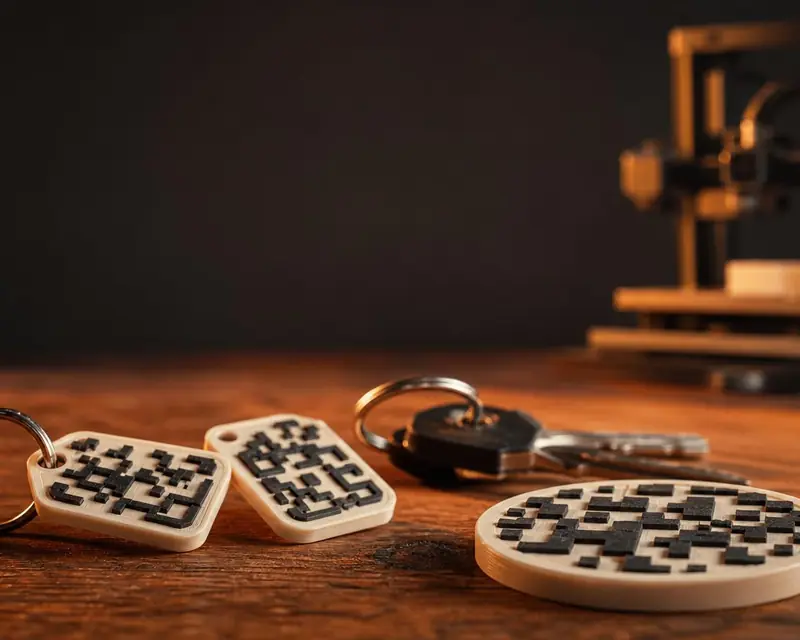 Your QR in 3D
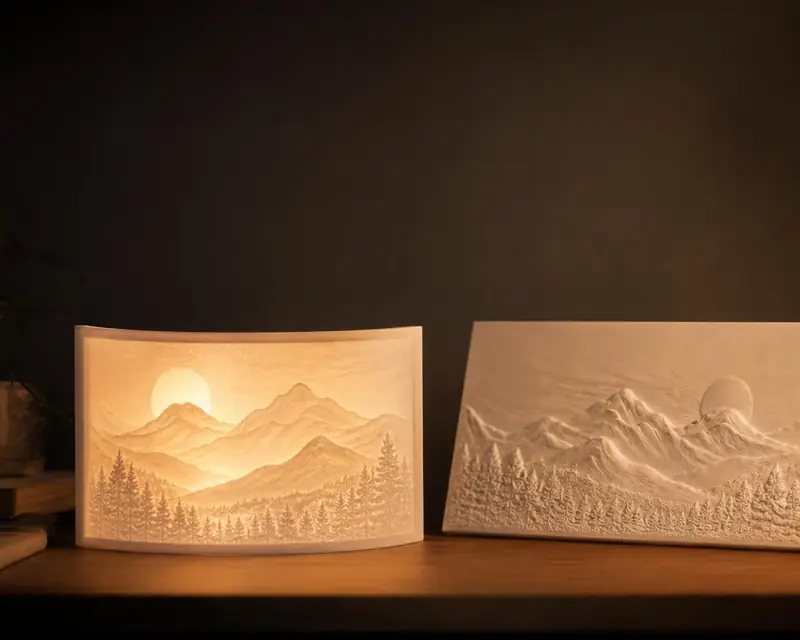 Your photo in 3D
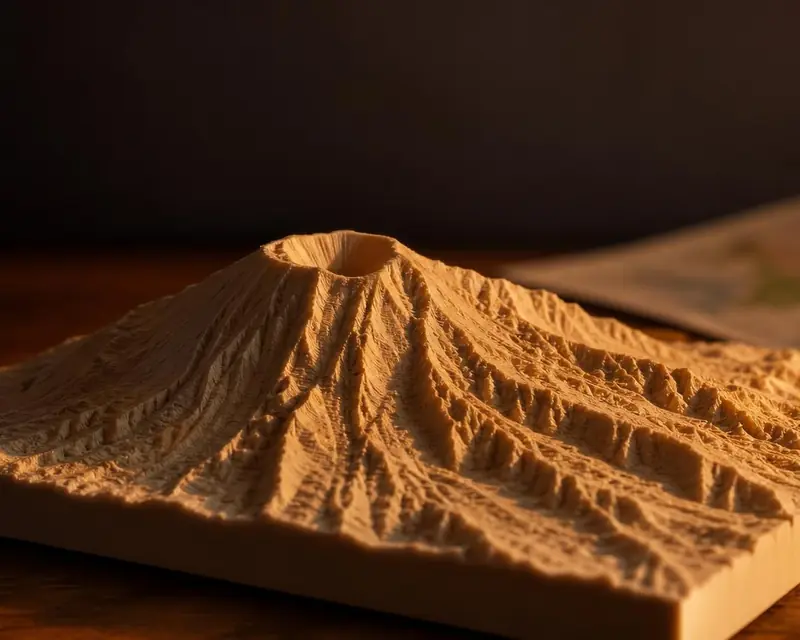 Your map in 3D
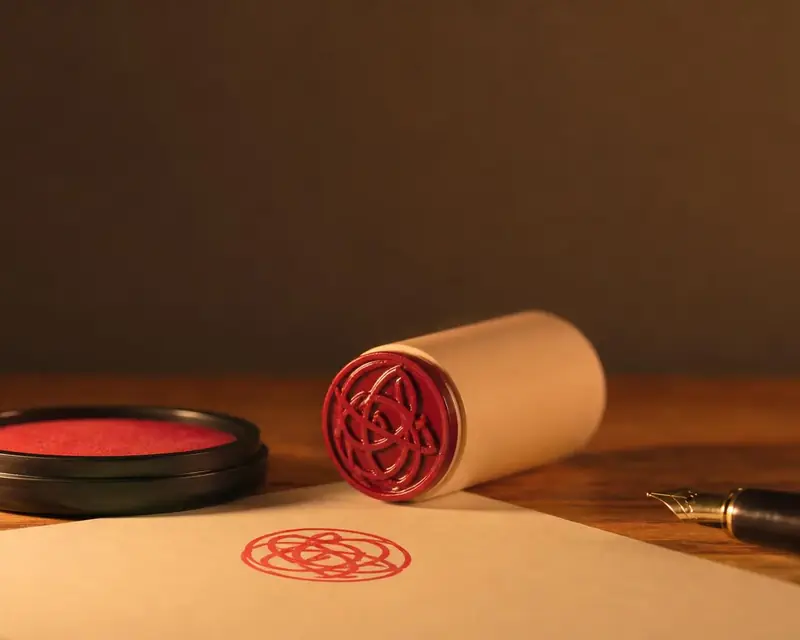 Signature to stamp
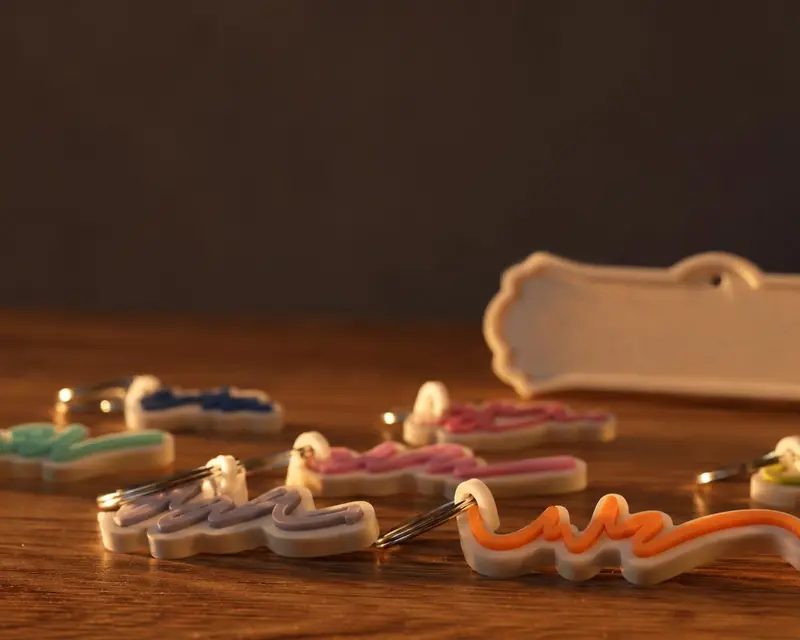 Your name in 3D